
Population Selection in Campus Solutions PeopleSoft empowers institutions to efficiently identify, manage, and process groups of students or otherconstituents. This powerful functionality streamlines tasks such as batch processing, reporting, and data analysis. In this blog, we’ll explore the key aspects of Population Selection, its benefits, and how to effectively use it within Campus Solutions.
Population Selection’s query framework transforms complex student data filtering into automated group management. By defining precise selection criteria—such as GPA thresholds, enrollment patterns, or demographic parameters—institutions can automate administrative processes while maintaining data accuracy. Key Components of Population Selection
Population Selection provides three powerful tools for creating and managing constituent groups, each designed for specific selection needs:
1) Add Pop Select sub record to the run control and state record
Start by adding the Pop Select sub record “SCCPS_RCNTL_SBR” into your run control record & state record.
2) Add the ‘SCCPS_RUNCNTL_SBP’ to the run control page
Update the record name in Subpage with your run control record name.
3) Write PeopleCode for Pop Select Functionality
Write Peoplecode to all the necessary events to work it properly, i.e. rowinit, fieldchange & app engine.
4) Create Bind and Target Record Create a new record (SQL View) as a bind record with _BND as suffix, which act as a data source for Pop Select framework while creating PS Query as well as Equation Engine.
Create a new record (SQL Table) as Target record with _TGT as suffix, which holds Pop Select data in application engine. Target record must have PROCESS_INSTANCE as Key Field and other Key fields from Source Record (here _BND record).
5) Define the Population: Use PS Query, Equation Engine and External File to create the selection criteria.
Navigation: Menu -> Set Up SACR -> System Administration -> Utilities -> Population Selection -> Context Definition
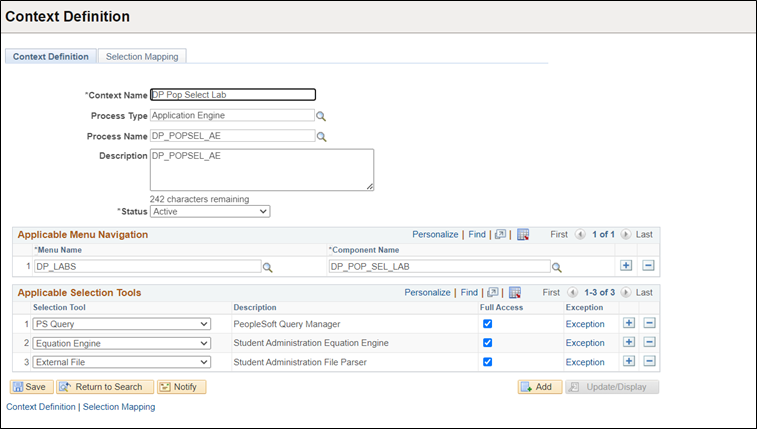
Fill in the following details on the ‘Context Definition’ tab:
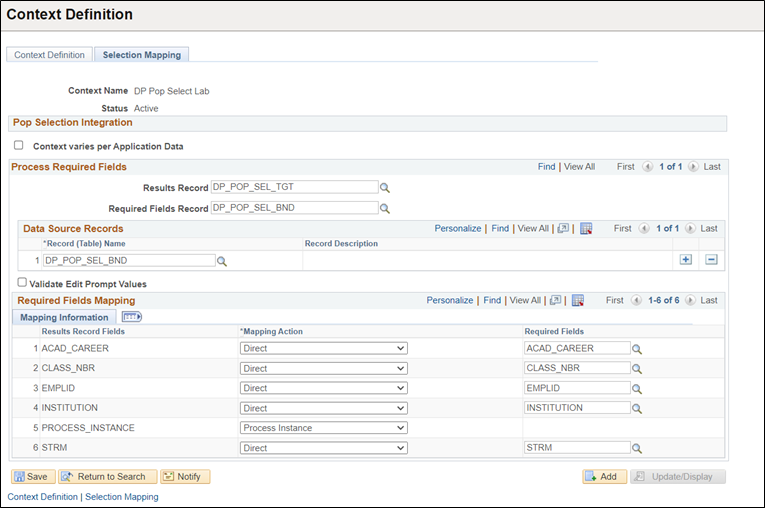
Next page ‘Selection Mapping’ page, enter the following details:
Example 1: Population Selection using “PS Query”
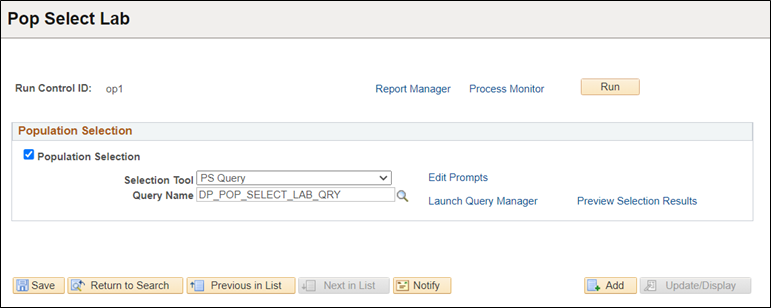
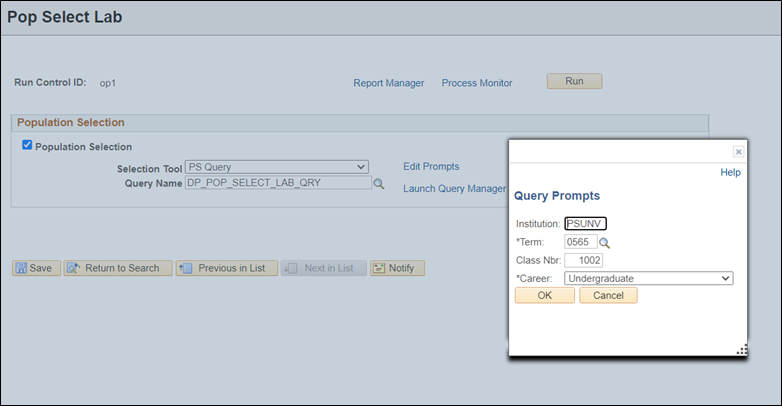
Note: Create PS query including your bind record (_BND).
Example 2: Population Selection using “External File”
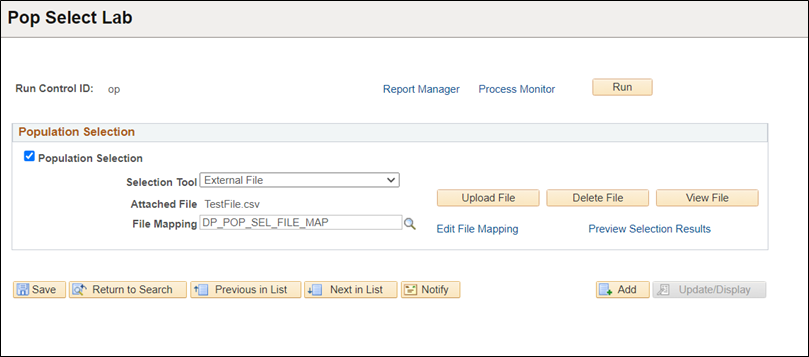
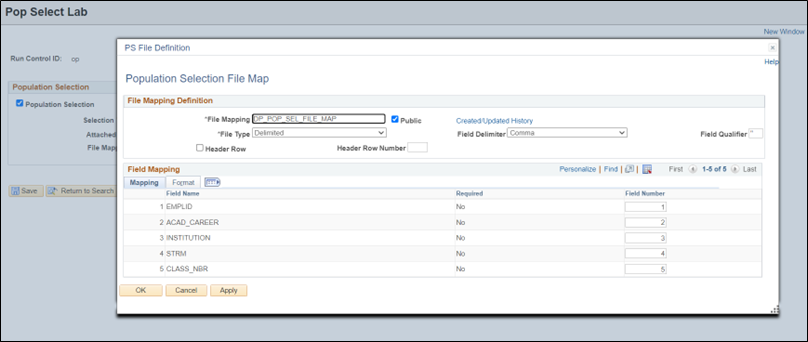
Example 3: Population Selection using “Equation Engine”
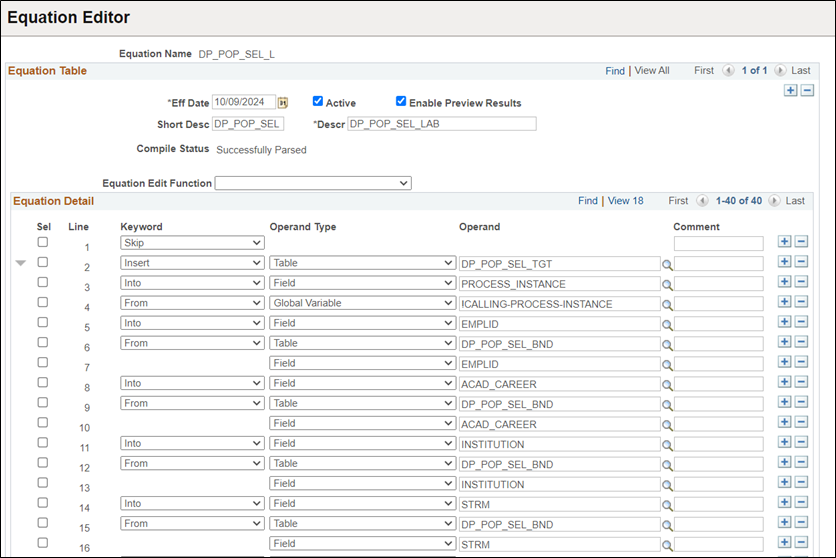
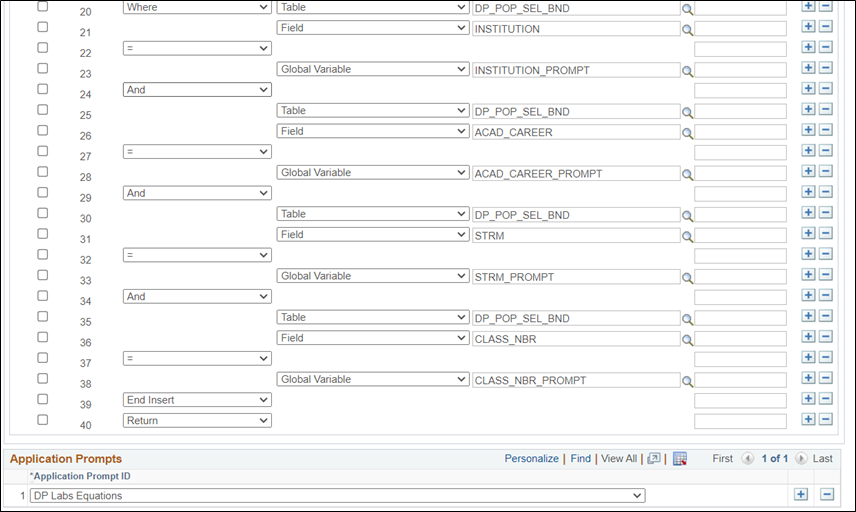
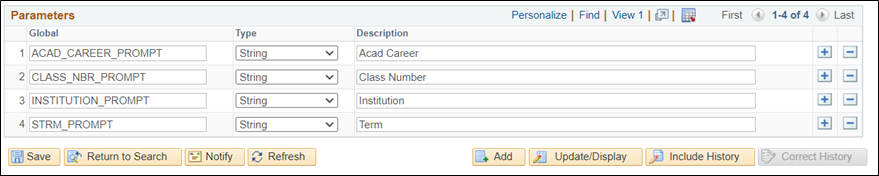
6) Run the Selection Process: Execute the query or process to generate the population.
7) Review and Update: Regularly review the population to ensure it meets the desired criteria and update as necessary.
Population Selection in Campus Solutions PeopleSoft is a versatile and powerful tool designed to optimize administrative workflows and data accuracy. By understanding and leveraging this feature, institutions can improve the management of student data and streamline various processes – increasing operational efficiency.